# Delete a presentation
Source: https://slidesgpt.com/docs/api-reference/endpoint/delete
DELETE /v1/presentations/{id}
Delete a presentation by id
# Download a presentation
Source: https://slidesgpt.com/docs/api-reference/endpoint/download
GET /v1/presentations/{id}/download
Downloads a presentation by id
# Embed a presentation
Source: https://slidesgpt.com/docs/api-reference/endpoint/embed
GET /v1/presentations/{id}/embed
Returns a redirect URL to view the presentation in Microsoft PowerPoint Online viewer, which can be used in an iframe or opened directly
# Generate presentation
Source: https://slidesgpt.com/docs/api-reference/endpoint/generate
POST /v1/presentations/generate
Generates a presentation based on the provided prompt
# Retrieve a presentation
Source: https://slidesgpt.com/docs/api-reference/endpoint/get
GET /v1/presentations/{id}
Get a presentation by id
# List Templates
Source: https://slidesgpt.com/docs/api-reference/endpoint/list-templates
GET /v1/templates
Retrieve all custom templates you've uploaded.
## Response
Returns an array of template objects.
Unique identifier for the template
ISO 8601 timestamp of when uploaded
```bash cURL theme={null}
curl https://api.slidesgpt.com/v1/templates \
-H "Authorization: Bearer YOUR_API_KEY"
```
```javascript JavaScript theme={null}
const response = await fetch("https://api.slidesgpt.com/v1/templates", {
headers: { Authorization: "Bearer YOUR_API_KEY" },
});
const templates = await response.json();
```
```python Python theme={null}
import requests
headers = {'Authorization': 'Bearer YOUR_API_KEY'}
response = requests.get(
'https://api.slidesgpt.com/v1/templates',
headers=headers
)
templates = response.json()
```
```json Response theme={null}
[
{
"id": "4a8ec7b3-c043-4d15-88e3-7d63803878f4",
"createdAt": "2025-11-18T18:08:25.000Z"
},
{
"id": "7b2cd9e1-f234-4a56-b789-c123d456e789",
"createdAt": "2025-11-17T14:22:10.000Z"
}
]
```
# Authentication
Source: https://slidesgpt.com/docs/getting-started/authentication
To use the **SlidesGPT API**, you need an API key for authentication. This key must be included in every request as a Bearer token in the `Authorization` header.
### How to Get an API Key
1. Sign up or log in to [SlidesGPT](https://slidesgpt.com).
2. Navigate to the [API Keys](https://slidesgpt.com/keys) page.
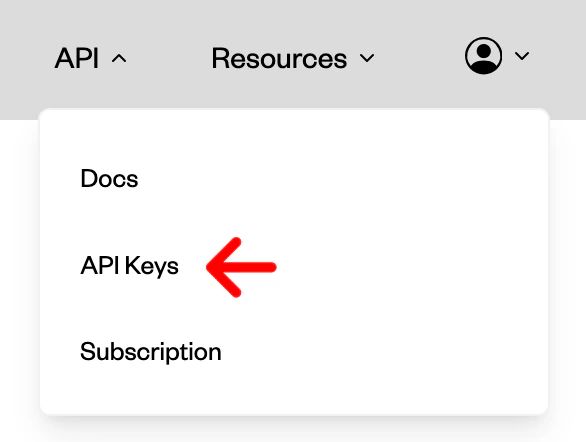 3. Generate a new API key.
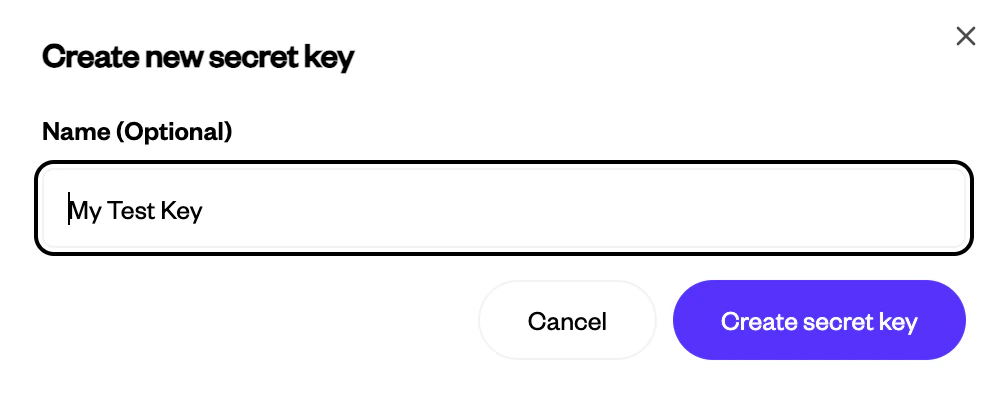
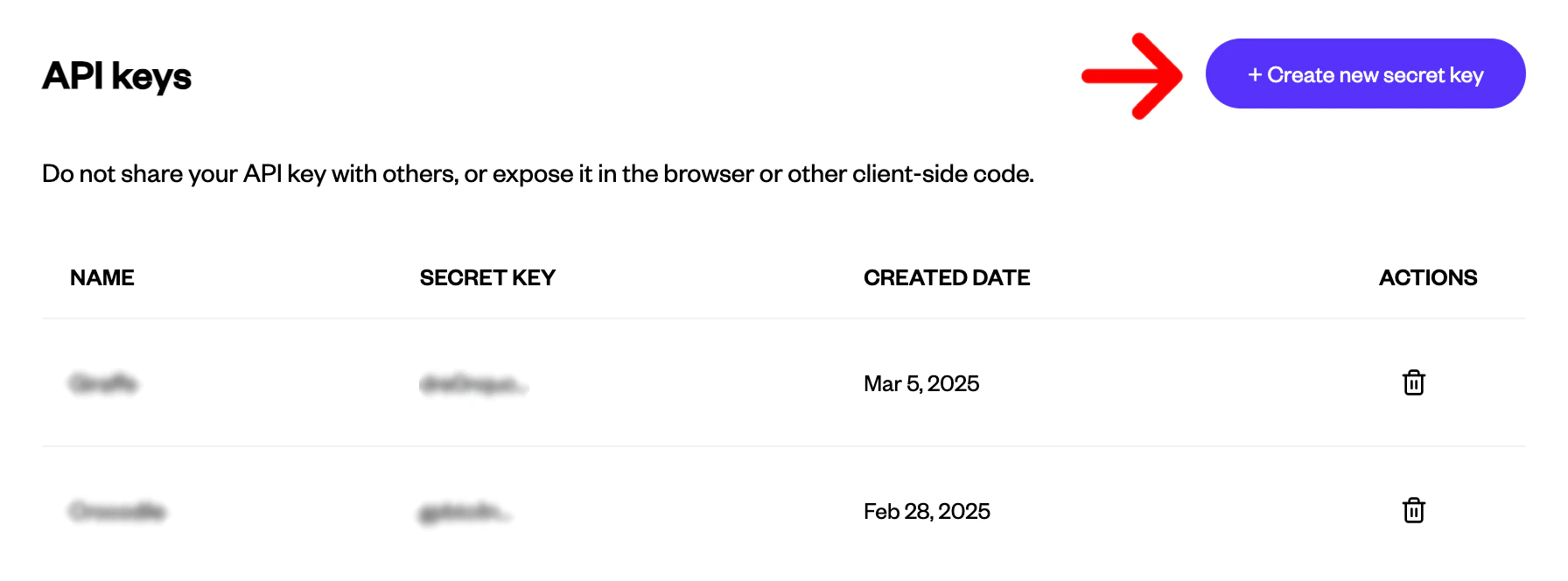 4. Optionally, give your key a name.
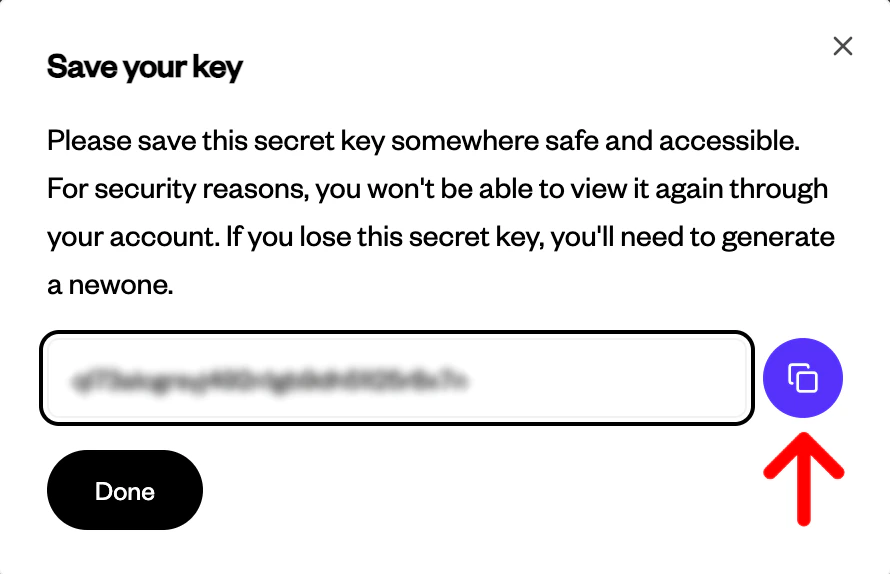
 5. Save your key.
 ### Using the API Key
Include it in your request headers:
```
Authorization: Bearer YOUR_API_KEY
```
Keep your key secure and do not share it.
# Custom Templates
Source: https://slidesgpt.com/docs/getting-started/custom-templates
Upload and use your own PowerPoint template designs via API
## Overview
Custom templates allow you to use your own PowerPoint template designs when generating presentations. Upload your branded template once, then use it across unlimited presentations.
## How It Works
1. **Upload** your PowerPoint template (.pptx)
2. **Get** a unique template ID
3. **Generate** presentations using your template ID
4. Your presentations will automatically use your custom design
## Quick Start
Upload your branded PowerPoint file on SlidesGPT:
Upload Custom Template
Use the template ID from step 1:
```bash theme={null}
curl -X POST https://api.slidesgpt.com/v1/presentations/generate \
-H "Authorization: Bearer YOUR_API_KEY" \
-H "Content-Type: application/json" \
-d '{
"prompt": "Q4 Business Review",
"templateId": "4a8ec7b3-c043-4d15-88e3-7d63803878f4"
}'
```
Your presentation will use your custom design, colors, fonts, and layouts!
## Requirements
* **File Format**: `.pptx` only
* **File Size**: Maximum 50MB
* **Fonts**: Use web-safe fonts or embed fonts in the file
## Best Practices
Save template IDs in your database and reuse them across presentations.
Upload once, use unlimited times - no need to re-upload.
## Code Examples
```javascript JavaScript theme={null}
// Generate with template
const generateResponse = await fetch(
"https://api.slidesgpt.com/v1/presentations/generate",
{
method: "POST",
headers: {
Authorization: "Bearer YOUR_API_KEY",
"Content-Type": "application/json",
},
body: JSON.stringify({
prompt: "Q4 Business Review",
templateId: ,
}),
},
);
const presentation = await generateResponse.json();
```
```python Python theme={null}
import requests
# Generate with template
generate_response = requests.post(
'https://api.slidesgpt.com/v1/presentations/generate',
headers=headers,
json={
'prompt': 'Q4 Business Review',
'templateId': ,
}
)
presentation = generate_response.json()
```
```bash cURL theme={null}
# Generate with template
curl -X POST https://api.slidesgpt.com/v1/presentations/generate \
-H "Authorization: Bearer YOUR_API_KEY" \
-H "Content-Type: application/json" \
-d "{
\"prompt\": \"Q4 Business Review\",
\"templateId\": \"<$TEMPLATE_ID>\"
}"
```
## Next Steps
API reference for listing templates
Generate presentations with custom templates
Need help? Contact our team
# Deleting a Presentation
Source: https://slidesgpt.com/docs/getting-started/delete-presentation
The **SlidesGPT API** allows you to delete a generated presentation permanently. Once deleted, the presentation cannot be recovered.
### Request Example
Send a `DELETE` request to:
```
https://api.slidesgpt.com/v1/presentations/{id}
```
#### Sample Code (cURL)
```sh theme={null}
curl -X DELETE "https://api.slidesgpt.com/v1/presentations/12345" \
-H "Authorization: Bearer YOUR_API_KEY"
```
#### Sample Code (JavaScript)
```js theme={null}
async function deletePresentation(id) {
try {
const response = await fetch(`${API_BASE_URL}/presentations/${id}`, {
method: "DELETE",
headers: { Authorization: `Bearer ${token}` },
});
if (response.ok) console.log("Presentation deleted successfully.");
else console.error("Failed to delete presentation.");
} catch (err) {
console.error(err);
}
}
```
> **Note:** You must include your API key in the `Authorization` header. If you don’t have one, follow the steps in the [Authentication Guide](/getting-started/authentication) to get your API key.
Use this API call carefully, as deletions are **irreversible**.
# Downloading a Presentation
Source: https://slidesgpt.com/docs/getting-started/download-presentation
The **SlidesGPT API** allows you to download a generated presentation as a PowerPoint (`.pptx`) file.
### Request Example
Send a `GET` request to:
```
https://api.slidesgpt.com/v1/presentations/{id}/download
```
#### Sample Code (JavaScript)
```js theme={null}
import fs from "fs";
async function downloadPresentation(id) {
try {
const response = await fetch(`${API_BASE_URL}/presentations/${id}/download`, {
method: "GET",
headers: { Authorization: `Bearer ${token}` },
});
const buffer = await response.arrayBuffer();
fs.writeFileSync(`presentation-${id}.pptx`, Buffer.from(buffer));
} catch (err) {
console.error(err);
}
}
```
This function fetches the `.pptx` file and saves it locally.
#### Sample Code (wget)
```sh theme={null}
wget --header="Authorization: Bearer YOUR_API_KEY" \
-O presentation.pptx \
"https://api.slidesgpt.com/v1/presentations/12345/download"
```
> **Note:** You must include your API key in the `Authorization` header. If you don’t have one, follow the steps in the [Authentication Guide](/getting-started/authentication) to get your API key.
# Embedding a Presentation
Source: https://slidesgpt.com/docs/getting-started/embed-presentation
The **SlidesGPT API** provides an easy way to embed presentations using Microsoft PowerPoint Online. The `embed` route returns a **redirect response** to the PowerPoint Online viewer.
### Request Example
Send a `GET` request to:
```
https://api.slidesgpt.com/v1/presentations/{id}/embed
```
#### Sample Code (cURL)
```sh theme={null}
curl -X GET "https://api.slidesgpt.com/v1/presentations/12345/embed" \
-H "Authorization: Bearer YOUR_API_KEY"
```
> **Note:** You must include your API key in the `Authorization` header. If you don’t have one, follow the steps in the [Authentication Guide](/getting-started/authentication) to get your API key.
### Behavior
This request **does not return JSON**. Instead, it redirects the user to PowerPoint Online, where the presentation can be viewed.
> **Note:** You can directly use this endpoint in an `
### Using the API Key
Include it in your request headers:
```
Authorization: Bearer YOUR_API_KEY
```
Keep your key secure and do not share it.
# Custom Templates
Source: https://slidesgpt.com/docs/getting-started/custom-templates
Upload and use your own PowerPoint template designs via API
## Overview
Custom templates allow you to use your own PowerPoint template designs when generating presentations. Upload your branded template once, then use it across unlimited presentations.
## How It Works
1. **Upload** your PowerPoint template (.pptx)
2. **Get** a unique template ID
3. **Generate** presentations using your template ID
4. Your presentations will automatically use your custom design
## Quick Start
Upload your branded PowerPoint file on SlidesGPT:
Upload Custom Template
Use the template ID from step 1:
```bash theme={null}
curl -X POST https://api.slidesgpt.com/v1/presentations/generate \
-H "Authorization: Bearer YOUR_API_KEY" \
-H "Content-Type: application/json" \
-d '{
"prompt": "Q4 Business Review",
"templateId": "4a8ec7b3-c043-4d15-88e3-7d63803878f4"
}'
```
Your presentation will use your custom design, colors, fonts, and layouts!
## Requirements
* **File Format**: `.pptx` only
* **File Size**: Maximum 50MB
* **Fonts**: Use web-safe fonts or embed fonts in the file
## Best Practices
Save template IDs in your database and reuse them across presentations.
Upload once, use unlimited times - no need to re-upload.
## Code Examples
```javascript JavaScript theme={null}
// Generate with template
const generateResponse = await fetch(
"https://api.slidesgpt.com/v1/presentations/generate",
{
method: "POST",
headers: {
Authorization: "Bearer YOUR_API_KEY",
"Content-Type": "application/json",
},
body: JSON.stringify({
prompt: "Q4 Business Review",
templateId: ,
}),
},
);
const presentation = await generateResponse.json();
```
```python Python theme={null}
import requests
# Generate with template
generate_response = requests.post(
'https://api.slidesgpt.com/v1/presentations/generate',
headers=headers,
json={
'prompt': 'Q4 Business Review',
'templateId': ,
}
)
presentation = generate_response.json()
```
```bash cURL theme={null}
# Generate with template
curl -X POST https://api.slidesgpt.com/v1/presentations/generate \
-H "Authorization: Bearer YOUR_API_KEY" \
-H "Content-Type: application/json" \
-d "{
\"prompt\": \"Q4 Business Review\",
\"templateId\": \"<$TEMPLATE_ID>\"
}"
```
## Next Steps
API reference for listing templates
Generate presentations with custom templates
Need help? Contact our team
# Deleting a Presentation
Source: https://slidesgpt.com/docs/getting-started/delete-presentation
The **SlidesGPT API** allows you to delete a generated presentation permanently. Once deleted, the presentation cannot be recovered.
### Request Example
Send a `DELETE` request to:
```
https://api.slidesgpt.com/v1/presentations/{id}
```
#### Sample Code (cURL)
```sh theme={null}
curl -X DELETE "https://api.slidesgpt.com/v1/presentations/12345" \
-H "Authorization: Bearer YOUR_API_KEY"
```
#### Sample Code (JavaScript)
```js theme={null}
async function deletePresentation(id) {
try {
const response = await fetch(`${API_BASE_URL}/presentations/${id}`, {
method: "DELETE",
headers: { Authorization: `Bearer ${token}` },
});
if (response.ok) console.log("Presentation deleted successfully.");
else console.error("Failed to delete presentation.");
} catch (err) {
console.error(err);
}
}
```
> **Note:** You must include your API key in the `Authorization` header. If you don’t have one, follow the steps in the [Authentication Guide](/getting-started/authentication) to get your API key.
Use this API call carefully, as deletions are **irreversible**.
# Downloading a Presentation
Source: https://slidesgpt.com/docs/getting-started/download-presentation
The **SlidesGPT API** allows you to download a generated presentation as a PowerPoint (`.pptx`) file.
### Request Example
Send a `GET` request to:
```
https://api.slidesgpt.com/v1/presentations/{id}/download
```
#### Sample Code (JavaScript)
```js theme={null}
import fs from "fs";
async function downloadPresentation(id) {
try {
const response = await fetch(`${API_BASE_URL}/presentations/${id}/download`, {
method: "GET",
headers: { Authorization: `Bearer ${token}` },
});
const buffer = await response.arrayBuffer();
fs.writeFileSync(`presentation-${id}.pptx`, Buffer.from(buffer));
} catch (err) {
console.error(err);
}
}
```
This function fetches the `.pptx` file and saves it locally.
#### Sample Code (wget)
```sh theme={null}
wget --header="Authorization: Bearer YOUR_API_KEY" \
-O presentation.pptx \
"https://api.slidesgpt.com/v1/presentations/12345/download"
```
> **Note:** You must include your API key in the `Authorization` header. If you don’t have one, follow the steps in the [Authentication Guide](/getting-started/authentication) to get your API key.
# Embedding a Presentation
Source: https://slidesgpt.com/docs/getting-started/embed-presentation
The **SlidesGPT API** provides an easy way to embed presentations using Microsoft PowerPoint Online. The `embed` route returns a **redirect response** to the PowerPoint Online viewer.
### Request Example
Send a `GET` request to:
```
https://api.slidesgpt.com/v1/presentations/{id}/embed
```
#### Sample Code (cURL)
```sh theme={null}
curl -X GET "https://api.slidesgpt.com/v1/presentations/12345/embed" \
-H "Authorization: Bearer YOUR_API_KEY"
```
> **Note:** You must include your API key in the `Authorization` header. If you don’t have one, follow the steps in the [Authentication Guide](/getting-started/authentication) to get your API key.
### Behavior
This request **does not return JSON**. Instead, it redirects the user to PowerPoint Online, where the presentation can be viewed.
> **Note:** You can directly use this endpoint in an `